


View Other Browsers' Bookmarks in Chrome — VertiTab Guide
Can You View Edge or Firefox Bookmarks Inside Chrome?
Yes — VertiTab's Bookmark Space Subscription lets you browse bookmarks from Edge, Firefox, or any supported browser directly in Chrome's sidebar, without importing or merging them. The bookmarks appear as read-only copies that stay automatically synced with the source browser.
Many people use more than one browser at a time. Chrome might hold all your work bookmarks — project docs, internal tools, frequently used dashboards — while Edge or Firefox is home to your personal collection: news sites, videos, shopping, learning resources. These two worlds stay completely separate, and finding a link from the "wrong" browser means switching apps entirely.
VertiTab 3.6.0 introduces Bookmark Space Subscription to solve this problem: view bookmarks synced from other browsers under the same account, in read-only mode, directly from the sidebar of your current browser — no switching, no importing.
Install VertiTab from the Chrome Web Store
What Are Sync Spaces and Following?
Sync Space and Follow are the two core concepts behind cross-browser bookmark viewing in VertiTab.
Sync Space: The fundamental unit of bookmark sync. When a browser joins a sync space, its bookmarks are continuously synced to that space's cloud copy. A single account can hold up to 20 independent spaces.
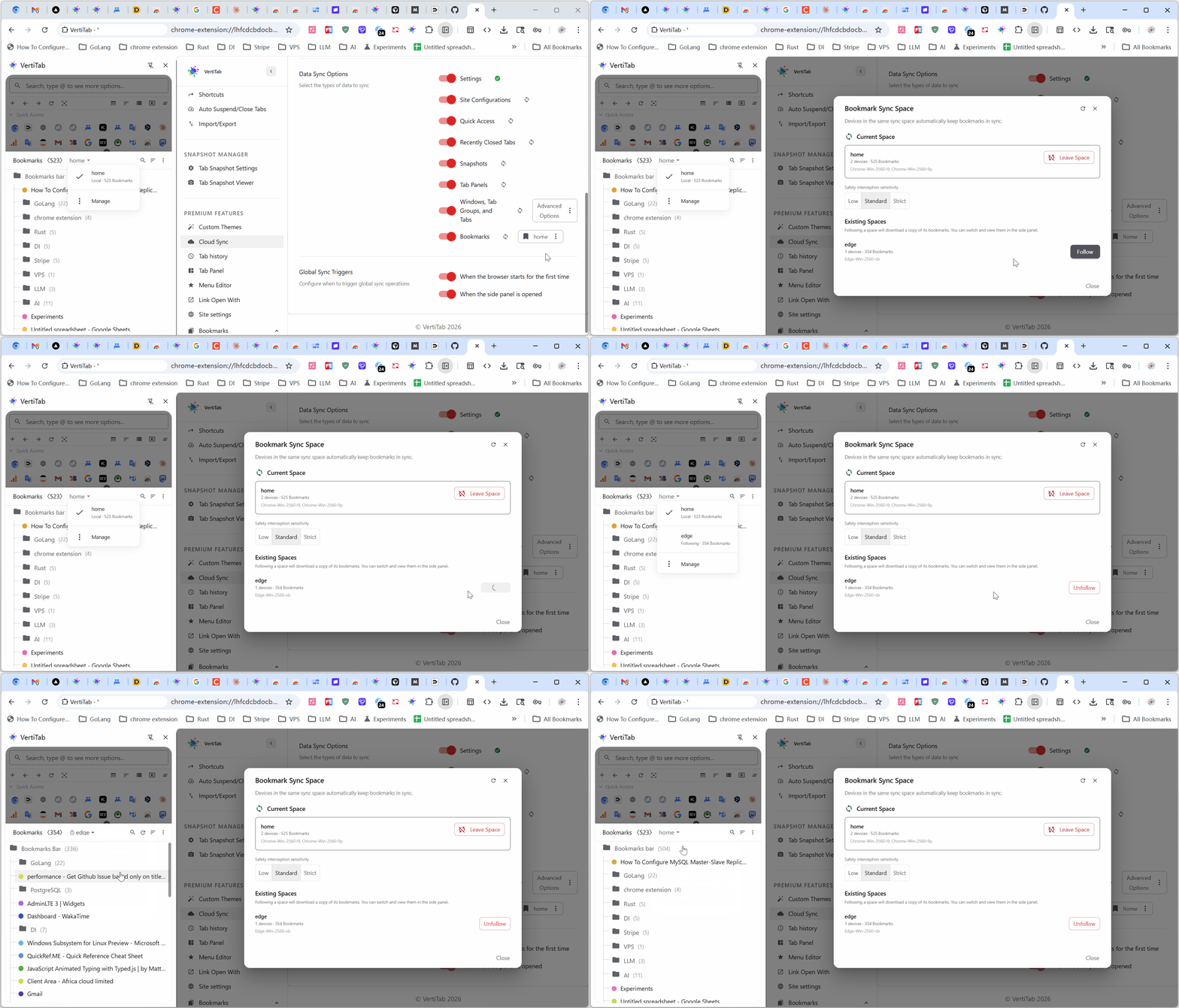
Follow: When you follow a sync space, VertiTab downloads a copy of that space's bookmarks and displays them in read-only mode in your current browser's sidebar. Following a space doesn't change your local bookmarks and doesn't affect the data in the followed space.
How Does Cross-Browser Bookmark Viewing Work in Practice?
Here's a real-world example. Alex uses two browsers side by side:
- Chrome: joined the "work" sync space, containing work-related bookmarks (project docs, internal tools, frequently used systems)
- Edge: joined the "home" sync space, containing personal bookmarks (news, videos, shopping, learning materials)
Previously, finding a personal bookmark while in Chrome meant switching to Edge. Now, Alex has followed the "home" space from Chrome, and can flip to those bookmarks directly in the Chrome sidebar — clicking any link opens it right there in Chrome. No browser switching. No importing home bookmarks into Chrome (local bookmarks stay separate and uncluttered).
And of course, the same works in reverse: Alex can follow the "work" space from Edge.
What Is the Difference Between Joining and Following a Space?
| Action | What It Means | Data Direction | Best Used When |
|---|---|---|---|
| Join a space | This browser's bookmarks sync two-way with the space | Bidirectional | This device is a full member of the space; bookmarks stay in sync |
| Follow a space | Download and view a read-only copy of the space's bookmarks | One-way (read only) | You want to browse another browser's bookmarks without merging them |
A simple analogy: Joining is like becoming a co-editor of a document. Following is like getting a read-only copy to reference whenever you need it.
How to Set Up Bookmark Space Subscription
Step 1: Make Sure Each Browser Has Its Own Sync Space
On each browser you want to access bookmarks from, make sure VertiTab is installed and bookmark sync is enabled (i.e., the browser has joined its own sync space). If not, follow the Bookmark Cloud Sync Guide first.
Step 2: Follow the Target Space from Your Current Browser
- Open the browser where you want to view the other bookmarks (e.g., Chrome)
- Go to VertiTab Settings → Sync → Bookmark Sync
- In the "Available Spaces" list, find the space you want (e.g., Edge's "home" space)
- Click the Follow button
VertiTab will immediately download a local copy of that space's bookmarks from the cloud.
Step 3: Switch Between Spaces in the Sidebar
After following, open VertiTab's bookmark panel in the sidebar. A Space Switcher will appear at the top:
- Select "Local Bookmarks": shows your current browser's own bookmarks, fully editable
- Select "home": shows a read-only copy of Edge's home space bookmarks — you can click links to open them, but not edit anything
Switching is instant — no loading delay.
What Can You Do with Followed Bookmarks?
Followed bookmarks are displayed completely separately from your local bookmarks in the sidebar — they won't mix into your bookmarks bar or any of your folders.
- ✅ Browse the full folder structure and bookmark list
- ✅ Click links to open them in the current browser
- ❌ Edit, delete, or move bookmarks in the followed space
- ❌ Add new bookmarks to the followed space
How Are Followed Bookmarks Kept Up to Date?
Followed bookmarks sync automatically in the background. Whenever the source browser updates its bookmarks and syncs to the cloud, VertiTab fetches the latest copy without any manual action. When you switch to that space in the sidebar, you're already looking at the most current version.
You can also click the Refresh button at the top of the space view to force an update at any time.
Is Bookmark Space Subscription Secure?
Yes — all bookmark data is encrypted on your device before uploading, and spaces are strictly isolated from each other.
- Same-account only: Following only works within your own account — there's no way to view another user's bookmark spaces
- End-to-end encryption: All space data is encrypted on-device before uploading; the server can't read any bookmark content
- Space isolation: Each sync space has its own encryption key; data between spaces is completely isolated
- Strictly read-only: Following a space will never write to it in any way — your data is safe
For more details on VertiTab's encryption architecture, see the cross-device cloud sync guide.
Which Browsers Support Bookmark Space Subscription?
Bookmark Space Subscription is currently supported on Chrome, Edge, and Firefox desktop browsers.
| Browser | Status |
|---|---|
| Chrome (desktop) | ✅ Fully supported |
| Edge (desktop) | ✅ Fully supported |
| Firefox (desktop) | ✅ Supported |
Mobile browsers (Android / iOS) are not yet supported.
How Does This Compare to Chrome's Built-in Bookmark Sync?
Chrome's built-in sync merges all bookmarks from every device into one unified library, while VertiTab keeps each browser's bookmarks independent. Chrome's approach works when you want identical bookmarks everywhere, but it can't:
- Keep a "work browser" and a "personal browser" with their own separate bookmark ecosystems
- Let you browse another set of bookmarks in read-only mode without merging them
VertiTab's space design fills exactly that gap. Different browsers keep their own independent bookmark systems, while still being able to cross-reference each other's content when needed — these two goals are no longer mutually exclusive.
Frequently Asked Questions
Can I view another person's bookmarks with this feature?
No. Bookmark Space Subscription only works within your own account. You can follow bookmark spaces from different browsers you own, but cross-account or cross-user bookmark sharing is not supported.
Does the source browser get notified when I follow its space?
No. Following simply downloads a copy of the space's bookmarks. It doesn't perform any write operations on the followed space, since it's your own data from another browser you own.
How much local storage does a followed space use?
Bookmark data is compressed, so even large bookmark libraries take up very little local storage and have essentially no impact on browser performance.
Is the local copy removed when I unfollow a space?
Yes. When you unfollow, the local copy is removed from the sidebar and no longer takes up any local storage.
Will following multiple spaces slow down the sidebar?
No. All space copies are locally cached. Switching between spaces is just a display switch on already-loaded data — no extra network requests, and it's very fast.
Can I browse followed bookmarks offline?
Yes. Following stores a local copy, so even without an internet connection, you can still browse the cached bookmark content. You just won't receive any new updates until you're back online.
How many spaces can I follow at once?
The combined total of joined and followed spaces is capped at 20, which is more than enough for virtually any multi-browser workflow.
How can I tell followed bookmarks from my own bookmarks?
There's a clear visual distinction in the sidebar. Bookmarks from a joined space can be edited normally. Bookmarks from a followed space are marked as "read-only" and can't be modified, preventing accidental edits.
Related reading: